Move money in seconds.

Between your accounts or another bank.

Move Money on Your Schedule.

Send money between your Frontwave accounts, to another bank, or to people you trust. Use Digital Banking for everyday transfers, Zelle® for person-to-person payments or wire transfers when timing matters most. Open any topic below for more details.

Everyday Transfers in Digital Banking

From a Browser: 

  1. Log in to Digital Banking.
  2. Select Transfer and Pay, then Transfers
  3. Select the From Account and To Account
  4. Enter the amount and select the transfer date. 
  5. Choose One-Time or Recurring
  6. Add an optional memo. 
  7. Review and select Confirm.

From the Mobile App: 

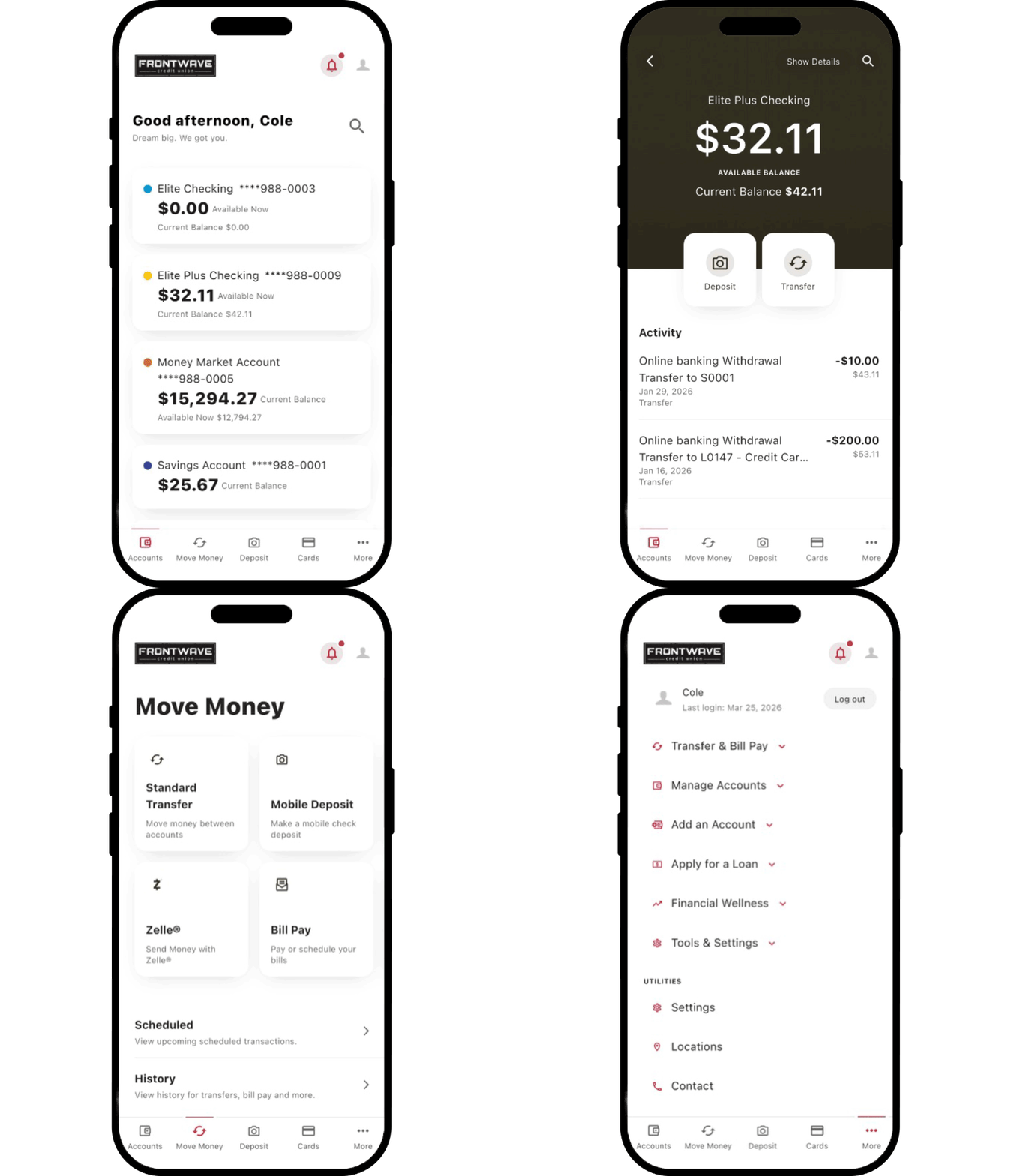
  1. Select Move Money, then Transfers
  2. Select the From Account and To Account
  3. Enter the amount and select the transfer date. 
  4. Choose One-Time or Recurring
  5. Add an optional memo. 
  6. Review and select Confirm.

IMPORTANT: Transfers between Frontwave accounts are processed immediately. External transfers may take 1–3 business days.

If you have already added an external account, it will appear as a payment option in the From Account dropdown. The steps below are for adding a new external account. 

From a Browser: 

  1. Log in to Digital Banking.
  2. Select Transfer and Pay, then Transfers
  3. Select Add Account from the From Account dropdown. 
  4. You now have two options: 
    • Instantly Add Account: Sign in securely with your external bank credentials to use the account right away. Note: Your login credentials are encrypted and never stored by Frontwave. 
    • Manually Add Account: Enter your account and routing numbers. Verification may take up to three business days before the account is available.  

From the Mobile App: 

  1. Open the Frontwave Mobile App
  2. Tap Move Money
  3. Tap Link External Accounts
  4. You now have two options: 
    • Instantly Add Account: Sign in securely with your external bank credentials to use the account right away. Note: Your login credentials are encrypted and never stored by Frontwave. 
    • Manually Add Account: Enter your account and routing numbers. You’ll receive two small trial deposits in your external account within 2–3 business days. Once they appear, log in to Digital Banking and confirm the amounts to activate the account. 

After adding your external account, return to the Transfers screen to complete your transfer. 

IMPORTANT: External transfers may take 1–3 business days to post. 

IMPORTANT: You have three attempts to enter the correct trial deposit amounts. After three failed attempts, the account must be re-added.

Once your external account is verified, follow these steps.  

From a Browser: 

  1. Log in to Digital Banking
  2. Select Transfer and Pay, then Transfers
  3. Select the From Account and To Account
  4. Enter the amount and select the transfer date. 
  5. Choose One-Time or Recurring
  6. Add an optional memo. 
  7. Review and select Confirm

From the Mobile App: 

  1. Select Move Money, then Transfers
  2. Select the From Account and To Account
  3. Enter the amount and select the transfer date. 
  4. Choose One-Time or Recurring
  5. Add an optional memo. 
  6. Review and select Confirm.

Wire Transfers: Instructions & Security Warning

Follow these steps to ensure a smooth, secure wire transfer:

  1. Gather the recipient’s information:
    • Bank name and ABA/routing number
    • Account number
    • Full name and address
  2. Visit a Frontwave branch or call 800.736.4500 to initiate the wire.
  3. Submit your request before 1:00 p.m. PT for same-day processing.

Provide the sender with these details to receive a wire from a U.S. financial institution:

  • Receiving Institution: Frontwave Credit Union
  • ABA/Routing Number: 322274925
  • Phone Number: 800.736.4500
  • For Final Credit To: Your name and Frontwave Member number

  • Processing Times: Wires are processed Monday–Friday at 1:00 p.m. PT. Transfers sent after this time will process the next business day.
  • Same-Day Transfers: Ask the sending institution to submit the wire early to avoid delays.
  • Incoming Wires: Funds are credited to your account as soon as they are received and verified.

Wire fraud is on the rise. Always verify wiring instructions before sending money. Cybercriminals hack emails and send fake but convincing wire details. Protect yourself by following these steps: 

  • Verify wire instructions in person or by calling a trusted number 
  • Double-check details before sending! Never assume instructions are correct 
  • Be cautious of last-minute changes! Fraudsters often alter wire details at the last minute

If you need assistance or want to verify wire details, call our Member Solution Center during business hours:

Local & International: 760.631.8700

Domestic Toll-Free: 800.736.4500

Hours: Monday–Friday 7 a.m. – 6 p.m. PT | Saturday 9 a.m. – 4 p.m. PT

Transfer Money by Phone

Need to move money but cannot get online? Call and we will complete your transfer securely while you are on the line. 

Call to transfer

Local & International: 760.631.8700
Toll-Free: 800.736.4500
Monday–Friday: 7 a.m. - 6 p.m. PT | Saturday: 9 a.m. - 4 p.m. PT

Transfer Money with Zelle® Payments

Zelle® is available to eligible Frontwave checking account members age 18 and older.

You can send, receive, or request money2 with Zelle®. To get started, log in to the Frontwave Mobile app. From the Dashboard, tap "Move Money" then "Send Money with Zelle®". Learn more

To send money using Zelle®, simply select someone from your mobile device's contacts (or add a trusted recipient's email address or U.S. mobile number), add the amount you'd like to send and an optional note, review, then hit "Send." The recipient will receive an email or text message notification via the method they used to enroll with Zelle®. Money is available to your recipient in minutes if they are already enrolled with Zelle®.

To request money using Zelle®, choose “Request,” enter their enrolled email address, U.S. mobile number or Zelle® tag, confirm the recipient is correct and tap "Request."

To receive money, just share your enrolled email address or U.S. mobile number with a friend and ask them to send you money with Zelle®. If you have already enrolled with Zelle®, you do not need to take any further action. The money will be sent directly into your Frontwave Credit Union account, typically within minutes.

If someone sent you money with Zelle® and you have not yet enrolled with Zelle®, follow these steps:

  1. Click on the link provided in the payment notification you received via email or text message.
  2. Select Frontwave Credit Union.
  3. Follow the instructions provided on the page to enroll and receive your payment. Pay attention to the email address or U.S. mobile number where you received the payment notification - you should enroll with Zelle® using that email address or U.S. mobile number to ensure you receive your money.

Keeping your money and information secure is a top priority for Frontwave Credit Union. When you use Zelle® within the Frontwave Mobile app, your information is protected with the same technology we use to keep your Frontwave Credit Union account safe.

Zelle® is a great way to send money to family, friends and people you are familiar with such as your personal trainer, babysitter or neighbor.1

Since money is sent directly from your Frontwave Credit Union account to another person’s bank account within minutes,1 Zelle® should only be used to send money to friends, family and others you trust.

If you do not know the person or are not sure you will get what you paid for (for example, items bought from an online bidding or sales site), do not use Zelle®. These transactions are potentially high risk (just like sending cash to a person you do not know is high risk).

Some small businesses can receive payments with Zelle®. Ask your favorite small business if they accept payments with Zelle®. If they do, you can pay them directly from the Frontwave Mobile app using their enrolled email address, U.S. mobile number or Zelle® tag.

To use Zelle®, the sender and recipient’s bank or credit union accounts must be based in the U.S.

No, Zelle® payments cannot be reversed.

You can only cancel a payment if the person you sent money to has not yet enrolled with Zelle®. To see whether the payment is still pending because the recipient has not enrolled, go to your activity page, choose the payment you want to cancel and then select “Cancel This Payment.” If you do not see this option, call our customer support team at 800.736.4500 for help canceling the pending payment.

If the person you sent money to is already enrolled with Zelle® through their bank or credit union’s mobile app, the money is sent directly to their bank account and cannot be canceled. This is why it is important to only send money to people you know and trust and always ensure you used the correct email address or U.S. mobile number when sending money.

If you sent money to the wrong person, call our customer support team immediately at 800.736.4500 to determine what options are available.

No, Frontwave Credit Union does not charge any fees to use Zelle® in our mobile app.

Your mobile carrier’s messaging and data rates may apply.

As of March 31, 2025, all users must be enrolled through one of the more than 2,300 banks and credit unions that offer Zelle® to send and receive money. The list of participating financial institutions is always growing. You can find the updated list of participating banks and credit unions live with Zelle® at Zelle.com. If their bank or credit union is not listed, we recommend using another payment method at this time.
Transfer Money with P2P Payments

Notice to Frontwave P2P Users

Frontwave’s current Person-to-Person (P2P) Payment Service will end in August 31, 2026. We recommend enrolling in Zelle® for a faster, more flexible way to send and receive money directly within the Frontwave mobile app.

Please note that existing payment history, contacts, and saved recipients from the current P2P service will not transfer to Zelle® or remain available after the service ends. You will need to manually re-add your contacts and recipients after enrolling.

The best part about P2P payments is that you can send money to anyone using just their email address or mobile phone number!

Follow these steps to send a payment to a new contact:

  1. Log in to Digital Banking.
  2. Go to Transfer & Bill Pay, then click Send Money
  3. Tap the Pay A Person tab, then tap the + icon to add a new contact. 
  4. Verify your identity using Multi-Factor Authentication (MFA). NOTE: You’ll only need to verify your identity once per session when adding multiple contacts.
  5. Enter the following info for each contact: 
    • First and Last name 
    • Mobile number or email 
    • A security question only the two of you can answer

Follow these steps to send a payment to a contact:

  1. Log in to Digital Banking.
  2. Go to Transfer & Bill Pay, then click Send Money.
  3. Under the Pay A Person tab, select the contact. 
  4. Set up the amount, payment date, and frequency if it’s recurring. 
  5. Click More Payment Options to add alerts or custom scheduling. 
  6. Tap Pay $X.XX to confirm and send.

The recipient will get a notification with instructions to claim the funds.

Follow these steps to setup an alert:

  1. Log in to Digital Banking.
  2. Go to Transfer & Bill Pay, then click Send Money
  3. Tap the Settings icon in Send Money.
  4. Go to Pay A Person, then choose: 
    • Which alerts to receive (sent, delivered, etc.) 
    • How far in advance
    •  How to receive them (email or text)

⚠️ You can only change or cancel payments that are still pending. Once a payment moves to your Transaction History, it can’t be reversed.

  1. Log in to Digital Banking.
  2. Go to Transfer & Bill Pay, then click Send Money
  3. Tap the Activity tab.
  4. Select the recipient under Scheduled Transactions.
  5. To make changes, tap Edit > Update Details > Save Changes.
  6. To cancel, tap Delete. For recurring payments, choose This Event or All Events.

No, it’s FREE! The person you send money to doesn’t have to pay a fee either, and receives full amount you send. Standard message and data rates may apply when using mobile device.

No, your payment will be made from your Frontwave checking account.

The first time you pay someone the funds will be removed immediately upon acceptance of the funds (if payment was initiated prior to 5:00 pm Pacific Time, or the next business day (if the contact accepted the funds after 5:00 pm Pacific Time). After that, the money will be removed immediately( if the payment was initiated prior to 5:00 pm Pacific Time), or the next business day (if they payment was sent after 5:00 pm Pacific Time).

Is there a limit to the amount of money I can send using P2P?

Yes, you can transfer up to $300 in one day, up to $750 total payments in one week, and up to $1,500 in total payments in one month. We may modify the amount and frequency of transfers at any time for security reasons or due to account activity.

The contact will receive a notification via email or text message to the address or mobile number you specified. The message will include payment information and a secure link to collect the funds. Before they can accept the money, they will have to answer a security question that you have set up on your side that only you and the contact know the answer to. This will protect you from having the payment accepted by someone you don't know, in case you entered their email or phone number incorrectly. 

Once the contact has answered the security question, they can accept the money with their debit card (for real-time payment), or by entering their bank account routing and account numbers (for next-day ACH payment). 

When does the money become available to the contact?

If the contact chooses to collect the money via debit card, the money will be available to them immediately. Otherwise, the transaction will be processed via the Automated Clearing House (ACH) network, and the money will be available in 1 to 3 business days, depending on their financial institution’s process. 

What if the contact gets a message saying that their card is not eligible to receive funds?

Some financial institutions may restrict people from using their debit cards to collect P2P funds. If this happens, the contact will be prompted to enter a different debit card number. Alternatively, they can provide their checking or savings account information.

What happens if I send money to someone but they don’t collect it?

The contact has 7 days to collect the money. They will receive text and email reminders 3 days and 5 days after the money was sent. If the money is not collected in 7 days, you will be notified and the funds will be credited back to your account.

Yes! Money is sent securely using just an email address or phone number. Plus, P2P is built into our Online & Mobile Banking platforms, which include many security features designed to protect your financial information.

Just remember, even though the connection is secure, you should never share your private Digital Banking login, password or security codes with anyone. Frontwave will NEVER call you to ask for this information! For more information about common phishing scams, visit our Security page.

Bank Smarter, Not Harder.

Level Up with Our Mobile App

  • Bank on your schedule wherever you are
  • Deposit checks from anywhere, anytime
  • Pay bills and move money fast
  • See balances and activity instantly
Disclaimers

* To send or receive money with Zelle®, both parties must have an eligible account with a participating financial institution. Zelle® is available only with eligible checking accounts at Frontwave. Transactions between enrolled users typically occur in minutes. To send or receive money with a small business, both parties must be enrolled with Zelle® directly through their financial institution’s online or mobile banking experience.

Zelle® and the Zelle® related marks are wholly owned by Early Warning Services, LLC and are used herein under license.